

Notice: The Java browser plugin is NO longer needed for these SDS software versions:
VIP 8.2+ in the default, non-applet mode
- If you’re using VIP 8.1 or lower, please upgrade to VIP 8.2+
VFTP 3.1+ with JNLP
- If you’re using VFTP 3.0 or lower, please upgrade to VFTP 3.1+ and use JNLP
VNAC 5.1+ with JNLP
- If you’re using VNAC 5.0 or lower, please upgrade to VNAC 5.1+ and use JNLP
*last updated December 6, 2018
Do you want to run this application?
Allow access to the following application?
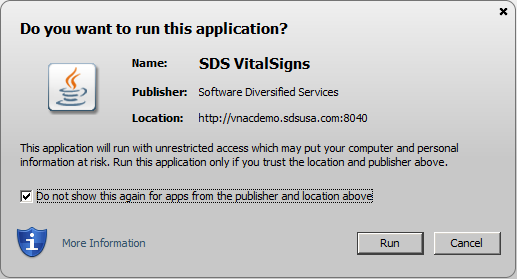 If this pop-up appears, do not hesitate to click on or .
Better yet, click on the “Do not show this again” box, then on or .
There is absolutely no risk in running the VFTP or VNAC browser interface.
Java security precautions generate this prompt for confirmation. It asks you to allow one, and only one, Java applet to run – the applet that downloads from the URL named in the dialogue after
Location: http://… or Web Site: …
Java Plug-In for Browsers/Clients
For browsers/clients, get Oracle’s Java Runtime Environment (JRE).
The download comes from Oracle Corp. It is free of charge and simple to install, provided you have administrative rights to the client machine. At the download site, look for a link to a JRE (not a JDK).
Note that the numbering format is somewhat inconsistent: version 8u45 is the same as 1.8.0_45.
As of August 2019, SDS suggests JRE 8 (1.8.0) as minimum for all VitalSigns browser interfaces.
Current systems will likely still run using prior versions of Java; however, SDS will no longer test with or support Java 7. The exception is that VFTP Server build D20180925 or later requires Java 8 as the minimum Java level.
Visit Oracle’s website to see currently supported versions of Java.
Java SDK for Servers
*NOTE: for certain products that run on Linux and Windows, the term “JDK” may be used instead of SDK.
VitalSigns product servers from SDS require that their host machines provide a Java SDK/JDK (development kit), which is free of charge and simple to install. The SDK/JDK provides two components essential to Java application servers: a JRE (Java runtime environment) and a Java compiler.
SDS recommends, tests, and supports only versions of Java that are supported by IBM. We always recommend using the latest refresh level of any version.
Prior versions of VitalSigns products have previously worked with prior versions of Java. If you have any questions about your product version running with a particular version of Java, please contact SDS Technical Support.
For details about a specific product and additional Java-related information, please visit the Environment Checklist for your VitalSigns product. The VECLs are available at the SDS Downloads webpage.
Java SDK for VFTP Agents
VitalSigns for FTP Agents use Java to communicate with the VFTP Database Server. Adequate Java support is typically present on z/OS and no maintenance is necessary.
64 bit Java is needed for the VFTP 4.0 agent. Prior versions required 31-bit Java SDK at the agent’s host and couldn’t work with 64-bit Java.
To learn whether IBM’s Java SDK is installed, look for the file JavaSDKdirectory/bin/javac. To learn which SDK version is available to the VFTP Agent, give the command JavaSDKdirectory java -version
JavaSDKdirectory means the directory where the SDK resides. The command’s output will indicate the Java version. It may also provide warning messages.
A new 31-bit SDK is free of charge and simple to install. Follow this link: IBM’s Java Technology Edition. IBM lists several supported versions, in 31-bit and 64-bit forms. VFTP Agents will work with any of the 31-bit versions, and none of the 64-bit versions.
Java Caching
Java applets work much faster when Java files are downloaded to the client machine once, then saved for later use. In addition, a bug in Java 7 causes a VIP 8.0 client to completely fail when caching is disabled.
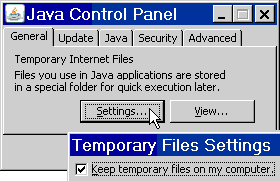 Enable Java caching as follows:
- Open the Java Control Panel.
In task bars and program lists, look for the coffee cup icon and double-click on it. - In the control panel, select General, then look for Temporary Internet Files, Settings….
- In Temporary Files Settings check the box labeled
Keep temporary files on my computer. - In the lower-right, click on OK, then Apply.
- Restart your web browser.
Introduction to Java Architecture
The Java 2 Standard Edition (J2SE) platform is easy to download and simple to install for Windows, Linux, and Solaris.
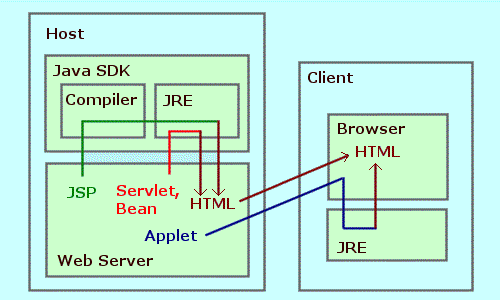 Java Servlets and Beans are compiled binary code on a web server. When a browser-client requests a servlet or bean, the server and its host run the Java program, the program returns HTML code to the server, then the server sends the HTML to the browser-client.
Java Server Pages (JSP, file-name *.jsp) are text files on a web-server. They contain a combination of HTML code and Java source code. When a browser-client requests a JSP, the server and its host first compile, then run the Java code, the Java returns HTML code to the server, then the server sends the HTML to the browser-client. After the first request, the compiled Java code is cached on the server for quick access next time.
Java Applets are binary files on a web server. When a browser-client requests an HTML page that includes a link to an applet, the server sends the applet down to the browser. The Java code then runs on the browser’s host machine and its output appears in the browser window.
Running Java programs requires a Java Runtime Environment (JRE or J2RE).
Compiling Java source code requires a Java compiler.
The JRE and compiler are parts of the Java 2 Software Development Kit (J2SDK).
The JRE can also be downloaded and installed separately, as a browser plug-in.

Phone: (800) 443-6183
Phone: (763) 571-9000
200 Village Center Drive, Suite 250
North Oaks, MN 55127
USA